
Anti-detect browsers have long become the basis for anyone who works with traffic, and without them, a normal launch on Facebook or Google today is more of an exception than a rule. But if you just delve into the topic, everything looks a bit like chaos: profiles, proxies, fingerprints, isolation — and it’s not clear what’s really important and what’s just “for show.” And most often the problem is not in the offer or creatives, but in the database — how the profile is created, how the proxy is connected, and what your setup looks like in the eyes of the platform. That’s why we decided not to write another theoretical guide, but to analyze the entire process in practice: together with the Octo Browser team, we went from scratch — from creating a profile to the first launch and basic work with accounts. But the important point is that this is not just a guide to Octo.
This is a database analysis that works in any anti-detection browser.
How to start using Octo Browser: a step-by-step guide
Octo Browser is a universal tool for multi-accounting. With it, you can create an unlimited number of accounts and thus expand the presence of your business on social networks, blogs, forums, trading and advertising platforms.
Anti-detect browsers allow you to avoid the risks of blocking and increase the number of traffic sources.
How to register an account
You can do this on the official website. Click the "Register" button in the upper right corner of the page.
After registering, you can use the promo code INFERRA and get 4 days of Starter subscription for testing.
And to start the profile, just select the one you need and click the "Start" button. Octo Browser will check the connection and apply the selected automatic settings.
How to create a profile
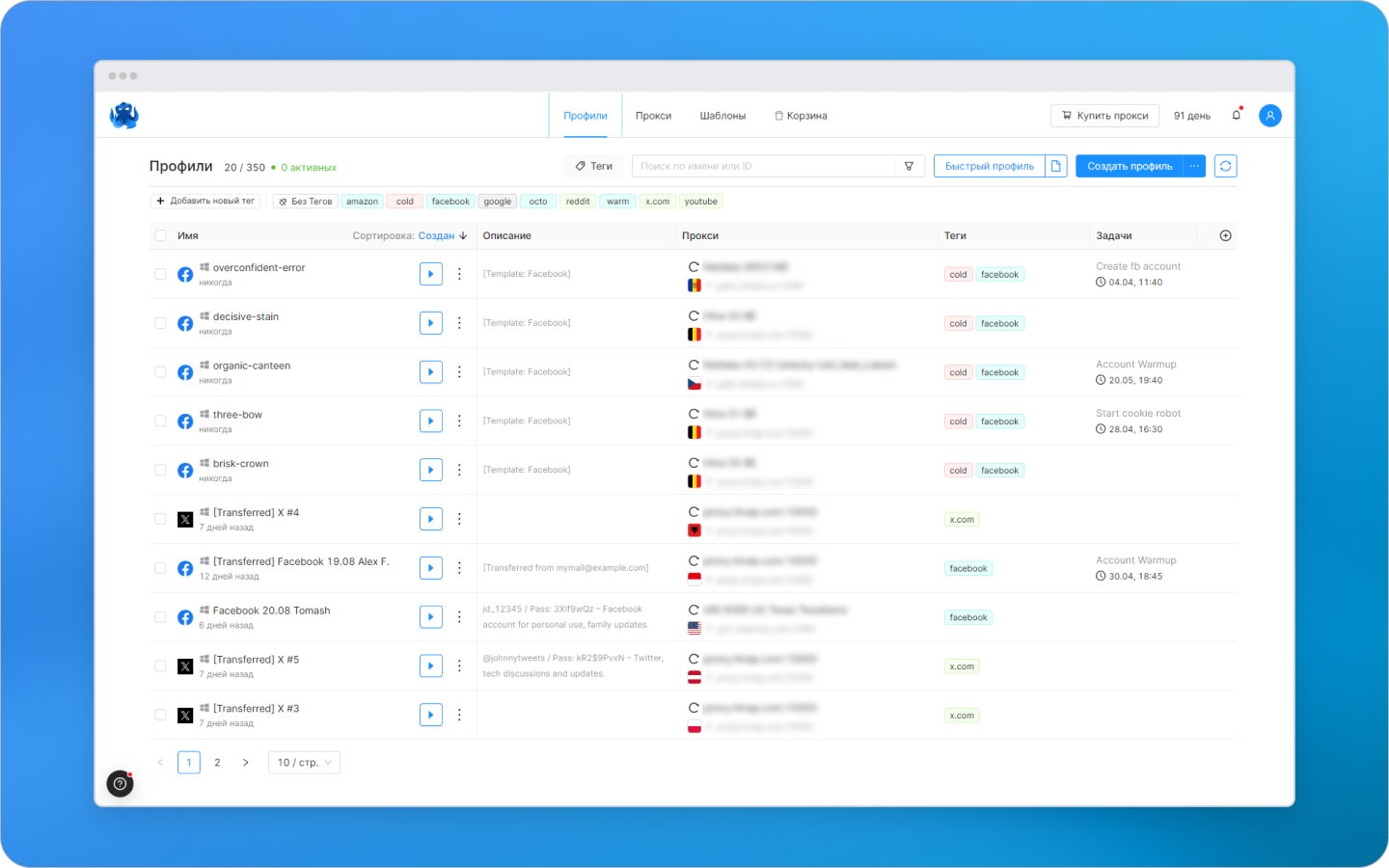
There are several ways to create profiles in Octo:
"Quick Profile" is the best option, it immediately creates the appropriate imprint.
Detailed settings via "Create Profile" - for those who know exactly what imprint is needed for work.
You can create template profiles or use mass creation by uploading files with ready-made parameters. Acceptable file formats: .csv, .txt, .xlsx.
How to set up a fingerprint
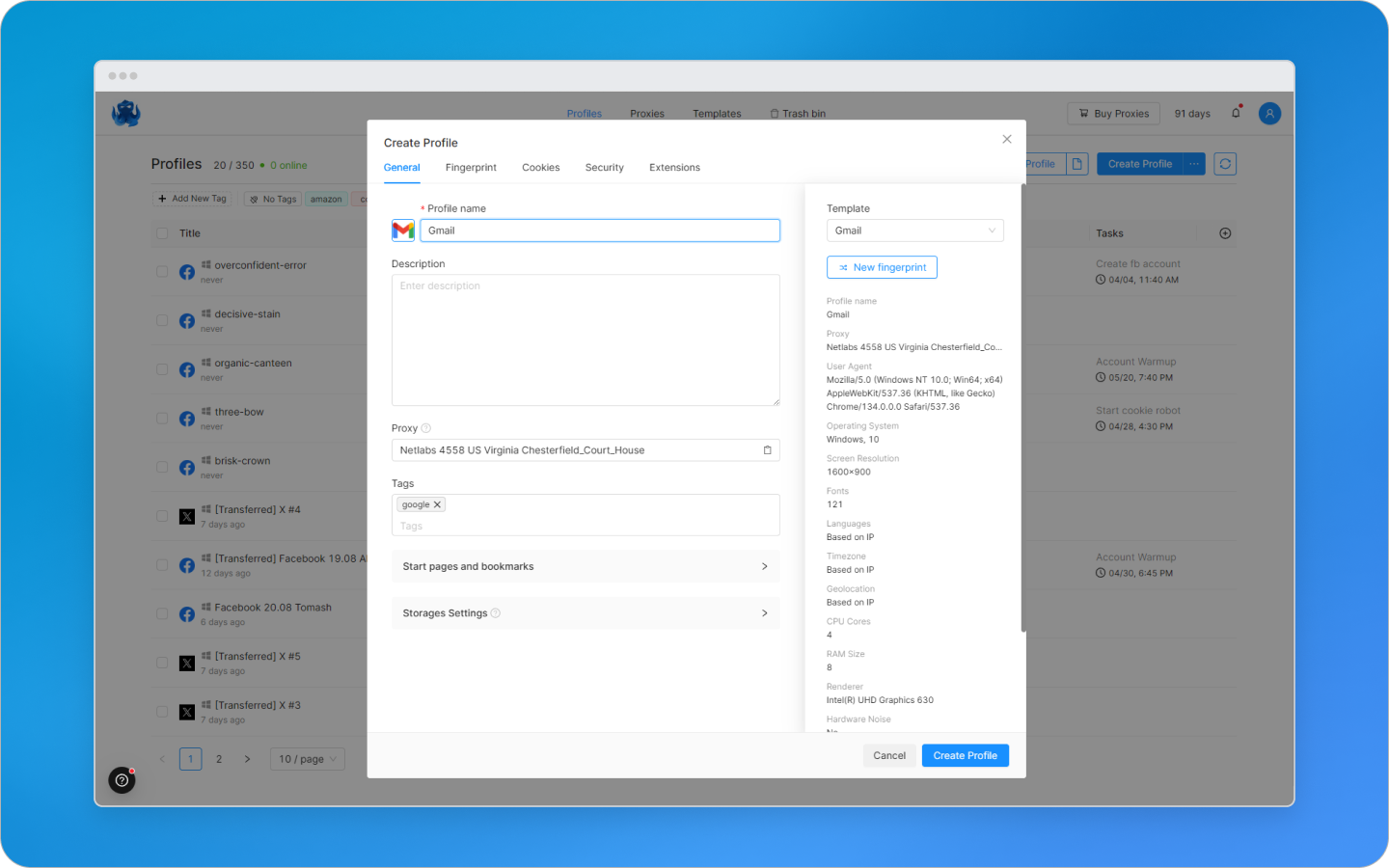
Digital fingerprints in Octo provide an opportunity to manually set more than 50 parameters of a digital fingerprint (for example, processor, video card, user-agent, system language, number of microphones and speakers, hardware noises, etc.).
For convenience, Octo Browser offers quick profiles with optimal fingerprint settings. If you do not need special settings, you can safely trust the default parameters.
How to set up a proxy
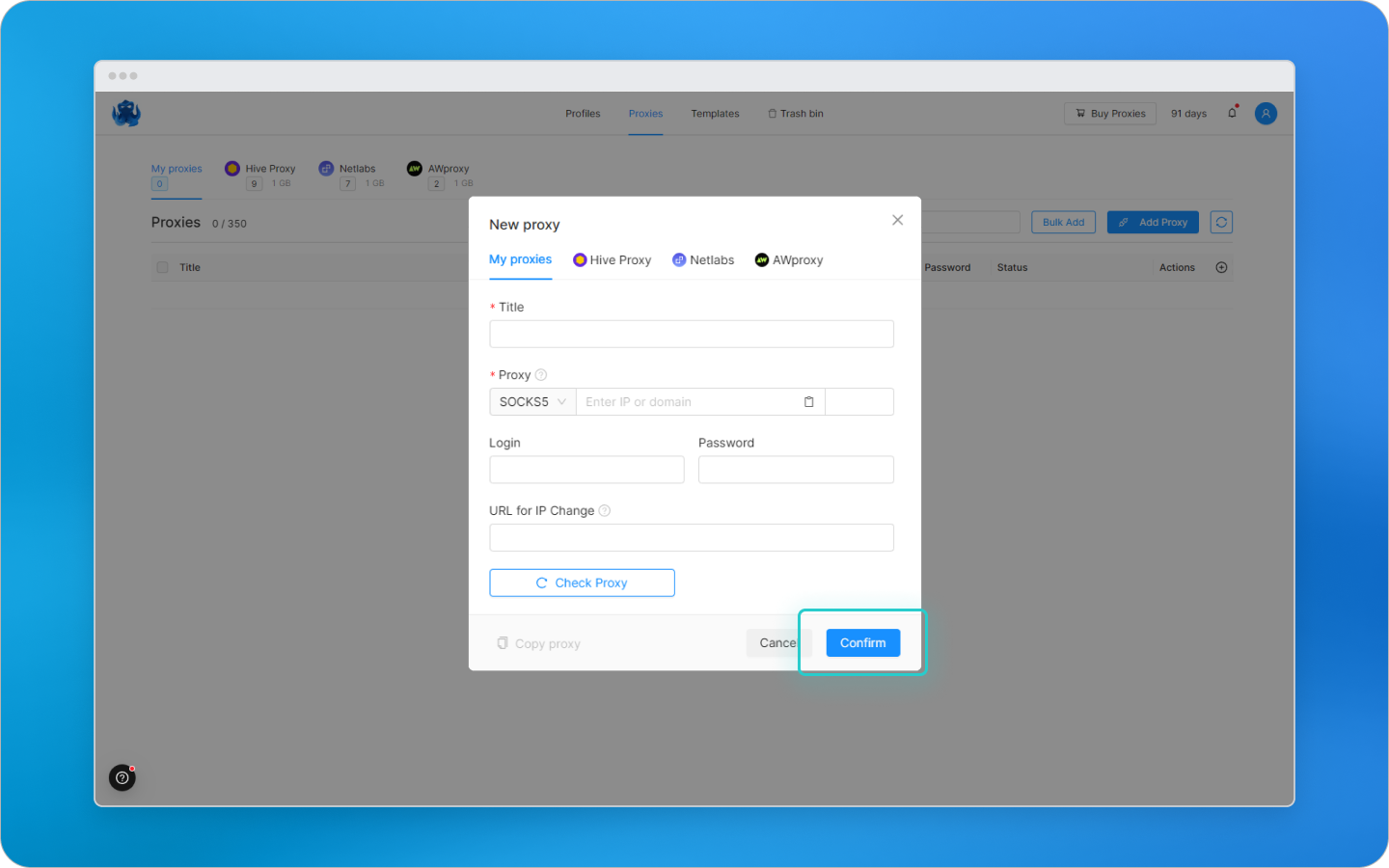
Octo has an internal proxy store. It saves time searching and testing third-party services. The proxy shop has verified resident proxies, which reduces the risk of blocking.
If you have a trusted provider, then you can use it in Octo.
Octo Browser offers two main ways to work with proxies: proxy manager and temporary proxies. The proxy manager allows you to save proxies to a quick access list and connect them to profiles without re-entering data. Temporary proxies are entered manually and are not saved in the proxy manager - this is convenient if you do not need to save proxies to the proxy manager list.
The browser supports all popular proxy protocols: HTTP, HTTPS, SOCKS5 and SSH.
How to organize teamwork
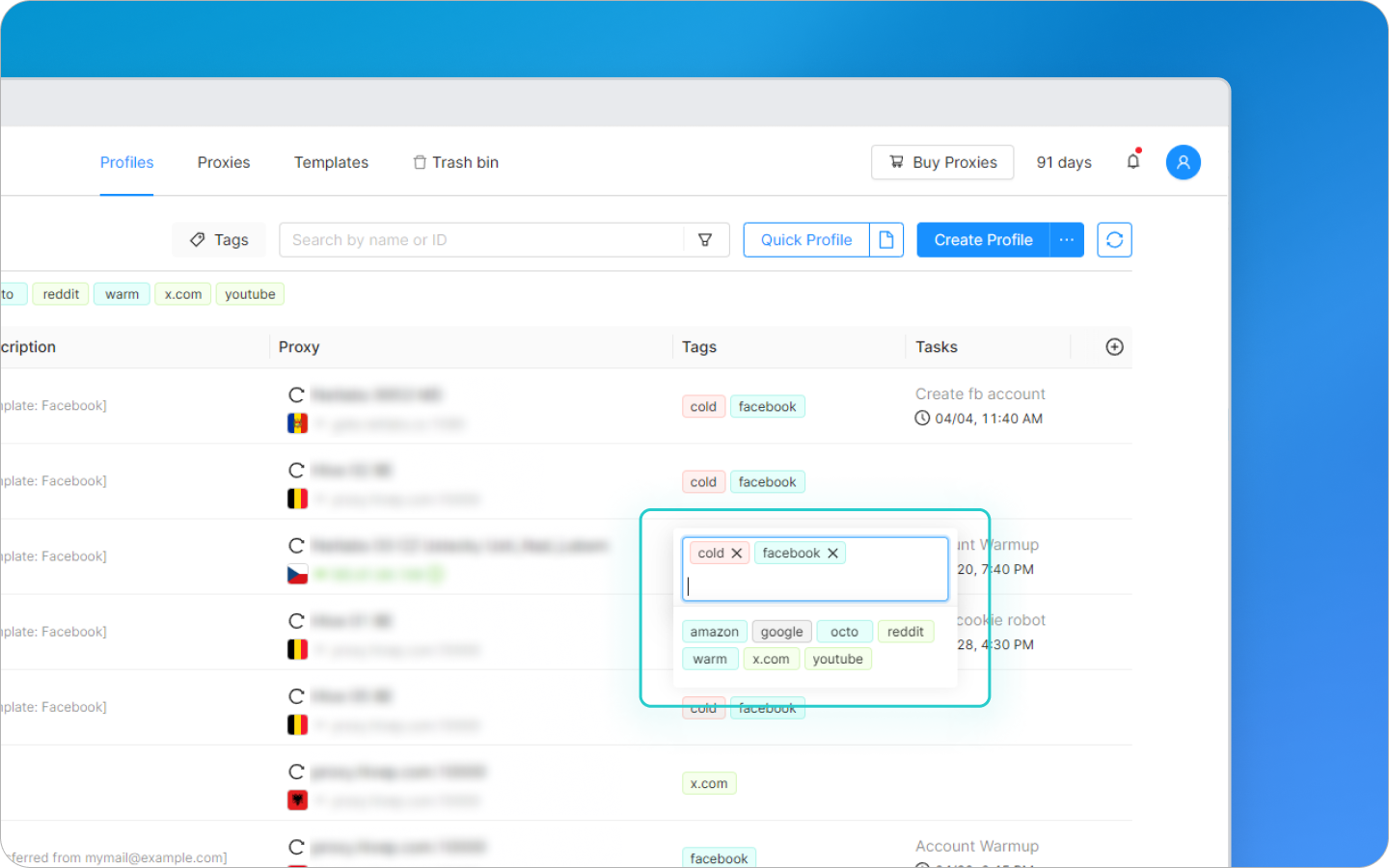
If you work in a team (this is available for Team and Advanced subscriptions), then be sure to set up a tag system for profiles. Each account can be assigned a tag. For example, "farm", "warm-up", "payment", etc. This helps to avoid errors when working with profiles. You can combine tags for your comfort.
Tags are also useful for solo users - they help to better navigate even in dozens of accounts. For example, profiles can be marked by platforms (Google, Facebook, crypto, etc.), which simplifies navigation and management.
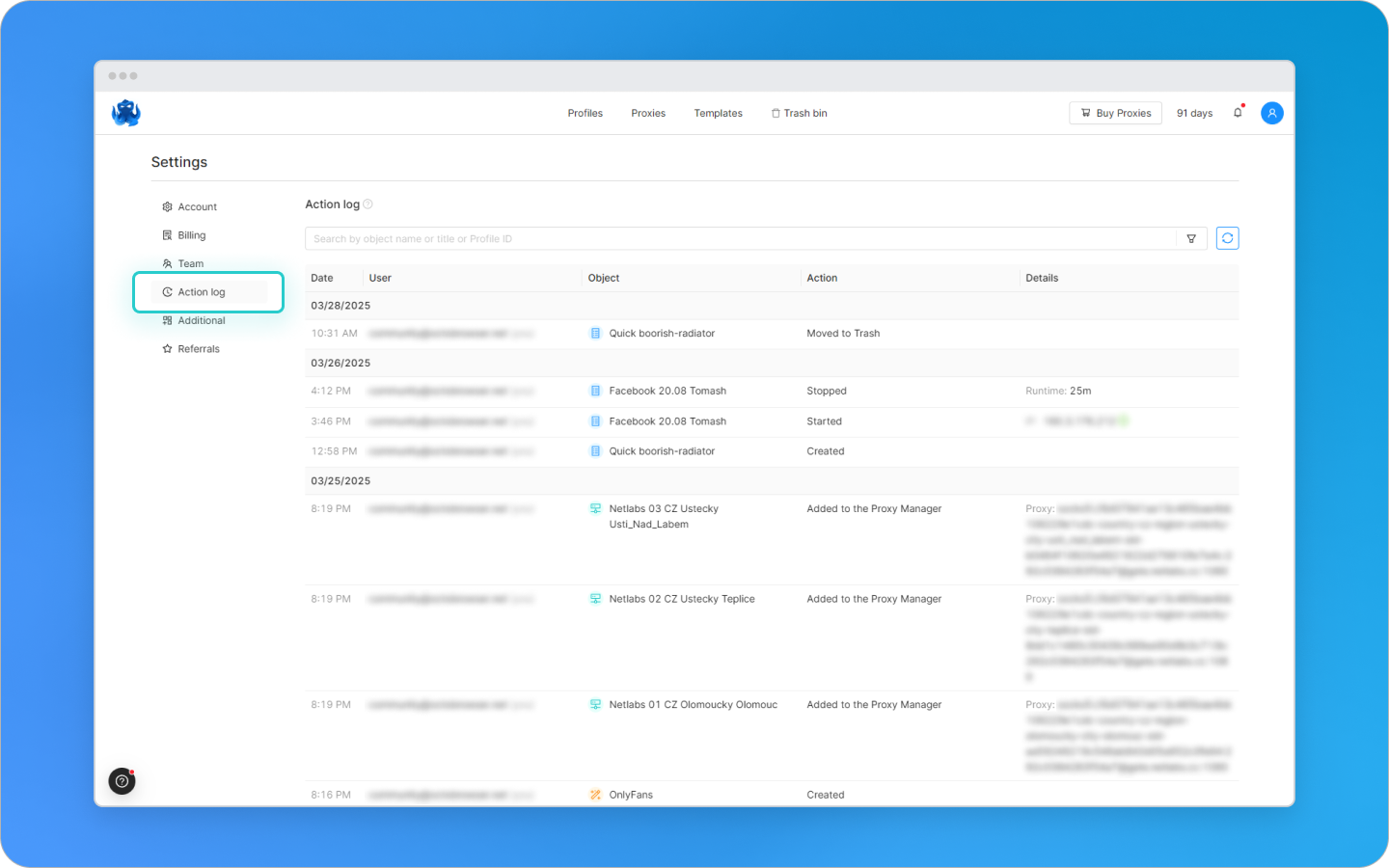
The team leader can also flexibly configure access levels to profiles. For example, hide farmer profiles from media buyers and vice versa - this helps minimize possible errors. In addition, the master account can track traffic costs, account activities using the action log. Thanks to this feature, the account owner can see all team activities for the last 30 days. You also always know who made what changes, when, and what, which simplifies management and prevents misunderstandings.
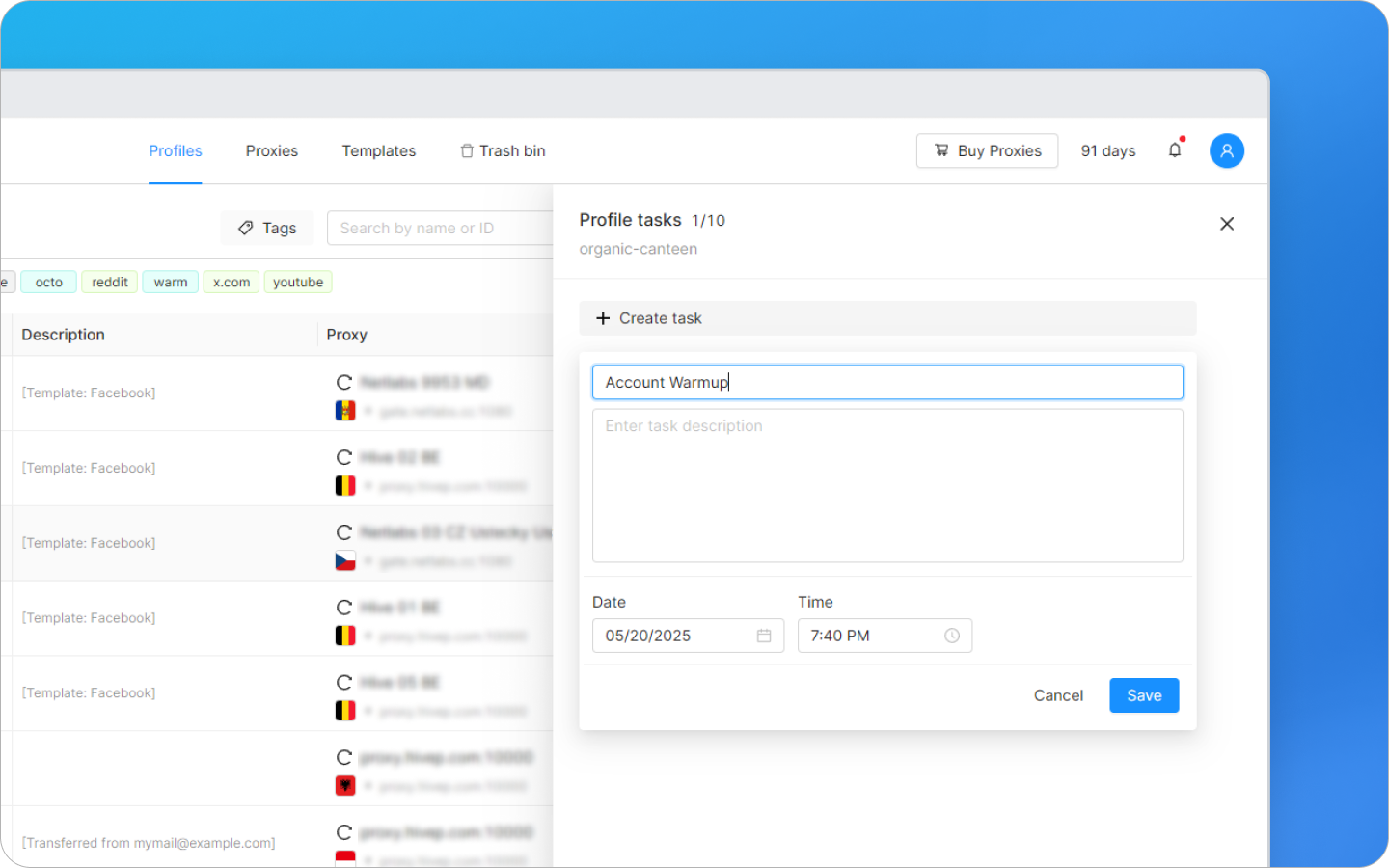
You can also set reminders for tasks in Octo. For example, specify the time for the profile to start in advance. At the right moment, Octo Browser will send a notification - it will appear in a pop-up window and the bell menu. You can add only 10 tasks for one profile at a time.
Security in Octo Browser
Octo Browser is one of the most secure anti-detection browsers on the market. Profile data is hosted on European cloud servers and protected by end-to-end encryption. Not even the support team has access to it.
For complete security, Octo has two-factor authentication, which protects your account in case you lose your password.
In addition, you can set individual passwords for particularly valuable profiles. Only the person who created them knows them, not even the support team has access to this information.
Common mistakes and how to avoid them
The main mistake is to use one profile for different tasks. Follow the simple rule “One task – one profile”. This approach will help you avoid a ban.
Accounts are often blocked due to discrepancies in digital fingerprints. This can be easily avoided if you create the most plausible fingerprints that do not differ from the statistics of ordinary users. You can use the default Octo settings.
Systems may find bot-like behavior suspicious. The platform analyzes how you scroll the feed, click on ads, and how often you log in to your account. Vary your pauses, use random delays between actions, and instead of instantly scrolling to the end of the page, scroll the window gradually - just like a living person would.
Inferra Media
Antidetect browser is not about the tool itself.
It's about how you use it.
You can take any service and "kill" accounts in the first 2 days.
Or you can work stably on basic settings - if you understand what you're doing.
In this guide, we've broken down the basics using the example of Octo Browser:
how to create a profile, how to connect a proxy, and what's really important in fingerprint.
Then it all comes down not to the tool, but to the approach:
how you build a setup, how you work with accounts, and how you scale.